How to Create AI-Generated Art with Stable Diffusion
Master the art of creating stunning AI artwork using Stable Diffusion. From basic prompts to advanced techniques.
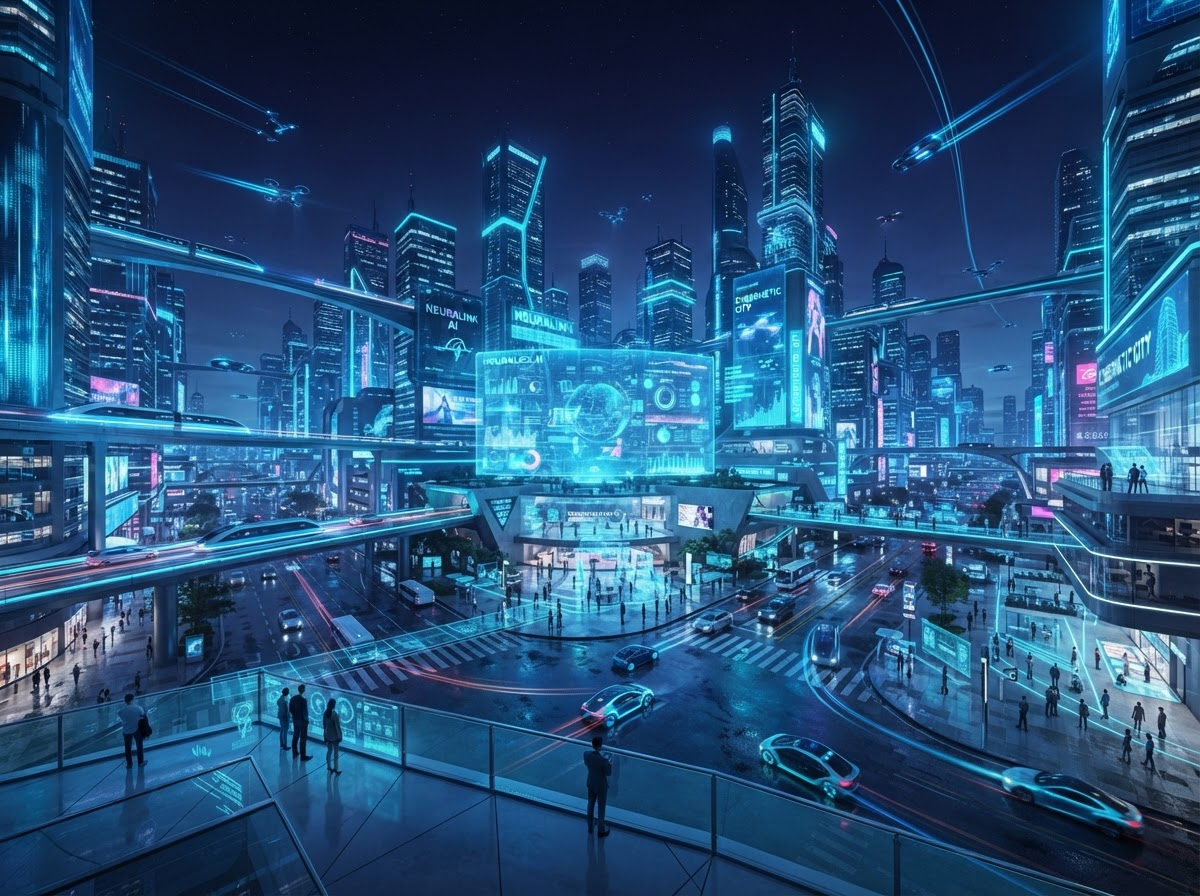
Stable Diffusion is a powerful open-source AI image generation model. This guide will teach you how to create amazing artwork, whether you’re a complete beginner or looking to advance your skills.
Getting Started
You have two options to use Stable Diffusion:
Option 1: Online Services (Easiest)
- DreamStudio (official)
- Leonardo.ai
- Mage.space
Option 2: Local Installation (Most Control)
- Requires GPU with 8GB+ VRAM
- More customizable
- Free to use
Understanding Prompts
The key to great AI art is writing effective prompts:
Basic Structure:
[subject], [style], [quality modifiers], [technical details]Example:
A majestic dragon flying over a medieval castle, digital art style, highly detailed, dramatic lighting, 4k, masterpiecePrompt Components
Subject: What you want to create
- “A portrait of a wise old wizard”
- “A futuristic cityscape”
Style: Artistic direction
- “oil painting”, “watercolor”, “photorealistic”
- “anime style”, “concept art”, “impressionist”
Quality Modifiers: Improve output
- “highly detailed”, “masterpiece”, “best quality”
- “4k”, “8k”, “ultra high resolution”
Negative Prompts: What to avoid
- “blurry, low quality, deformed, ugly”
- “extra limbs, bad anatomy, watermark”
Advanced Techniques
CFG Scale: Controls how closely the AI follows your prompt
- Low (5-7): More creative freedom
- High (10-15): Stricter adherence
- Start with 7-8
Steps: Number of refinement iterations
- 20-30 steps for most images
- More steps = better quality but slower
Seed: Ensures reproducibility
- Same seed + same prompt = same image
- Useful for iterating on a concept
Using ControlNet
ControlNet lets you guide image generation with:
- Pose: Control character poses
- Depth: Control spatial relationships
- Canny: Control edges and outlines
- Scribble: Turn sketches into art
Tips for Better Results
- Be Specific: “red sports car” vs “car”
- Use References: Include artist names or styles
- Iterate: Generate multiple variations
- Combine Ideas: Use img2img to refine images
- Experiment: Try different models and settings
Common Issues
Blurry Images: Increase steps or CFG scale Wrong Style: Be more explicit in your prompt Bad Hands: Add “bad hands, extra fingers” to negative prompt Inconsistent Results: Use seeds and img2img
Ethical Considerations
- Respect copyright and intellectual property
- Don’t generate harmful content
- Be transparent about AI-generated art
- Support human artists
Resources
- Models: Civitai, Hugging Face
Sources & Resources
Official Resources
- Stable Diffusion - https://stablediffusion.com/
- Hugging Face Diffusion - https://huggingface.co/docs/diffusers/
- Stability AI - https://stability.ai/
Model Repositories
- Civitai - https://civitai.com/
- Hugging Face Models - https://huggingface.co/models
- Model Zoo - https://github.com/topics/stable-diffusion
Learning & Community
- Stable Diffusion Discord - https://discord.gg/
- Reddit r/StableDiffusion - https://reddit.com/r/StableDiffusion/
- Papers with Code - https://paperswithcode.com/
- Image Generation Tutorials and Guides
- PyTorch and TensorFlow Documentation
- Community Forums and User Guides
- Community: Reddit r/StableDiffusion
- Tutorials: YouTube channels like “AI Art Workshop”
Start experimenting today, and don’t be afraid to iterate and refine your prompts. The more you practice, the better your results will be!
Related Articles
How to Set Up Your First AI Chatbot in 30 Minutes
A step-by-step guide to creating a simple AI chatbot using popular APIs. No advanced coding experience required.
How to Build Scalable AI Data Pipelines
Step-by-step guide to building production-ready data pipelines for machine learning.
How to Implement AI Governance Frameworks
Comprehensive guide to establishing governance policies and oversight for AI systems.